# Scrap Management
The chances of generation of scarps in the company inventory are high due to the physical wear and tear occurred during the various product movement operations or the perishable ones due to certain unforeseeable situations. The SIMISE platform has an effective scrap management system which will help the user to deal with these aspects of inventory scraps of waste generated.
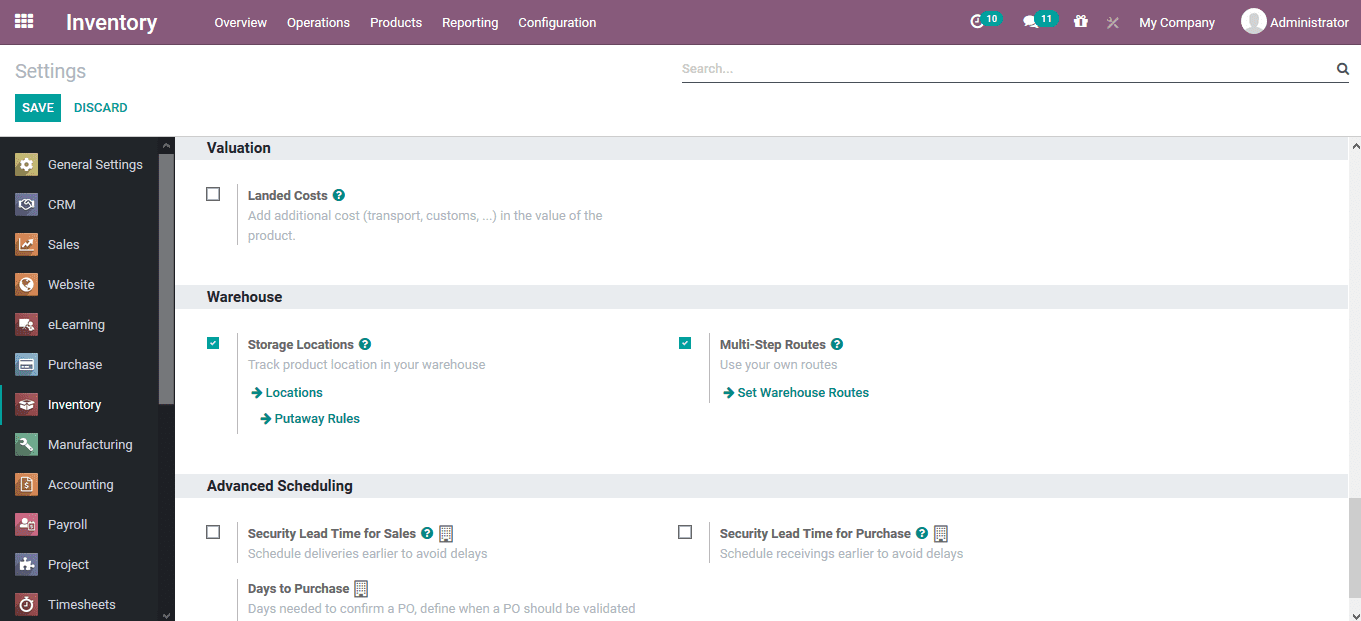
The scraps in SIMISE are stored in a separate location which could act only for the respective purpose. To initiate a scrap location the user should enable the multi storage locations options in the settings menu of the inventory module. In the settings menu under the warehouse menu enable the storage locations option available.
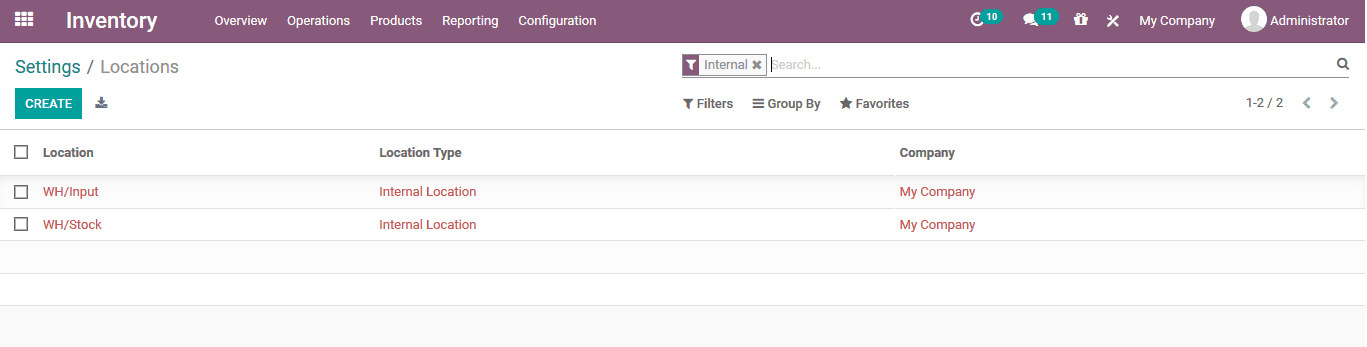
A new location can be set in the locations menu which can be directly accessed from the settings menu or form the configuration tab.
A new location can be created using the create option available in the menu which can be associated for the scrap products.
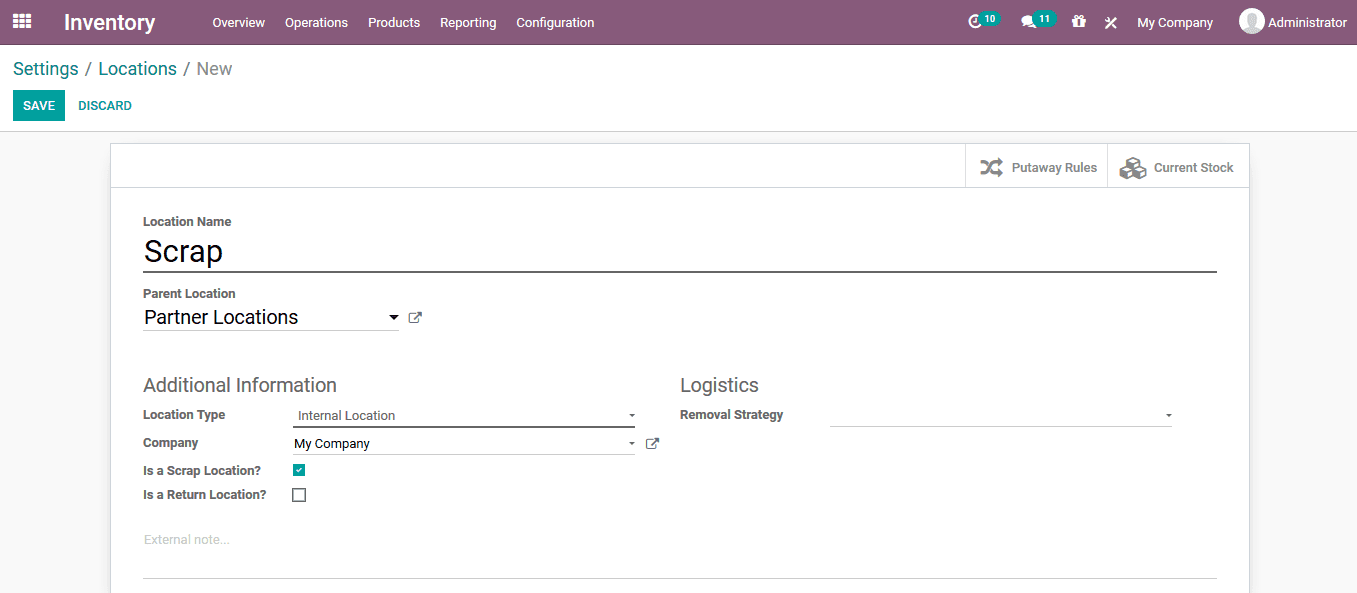
In the creation menu the user can provide the name of the location, allocate the parent location, mention the location type and the company allocated. If the respective location is a scrap one the user can enable the option available. The removal strategies for the location can be mentioned from the default options available in the logistics menu.
### Scrap the products or operations
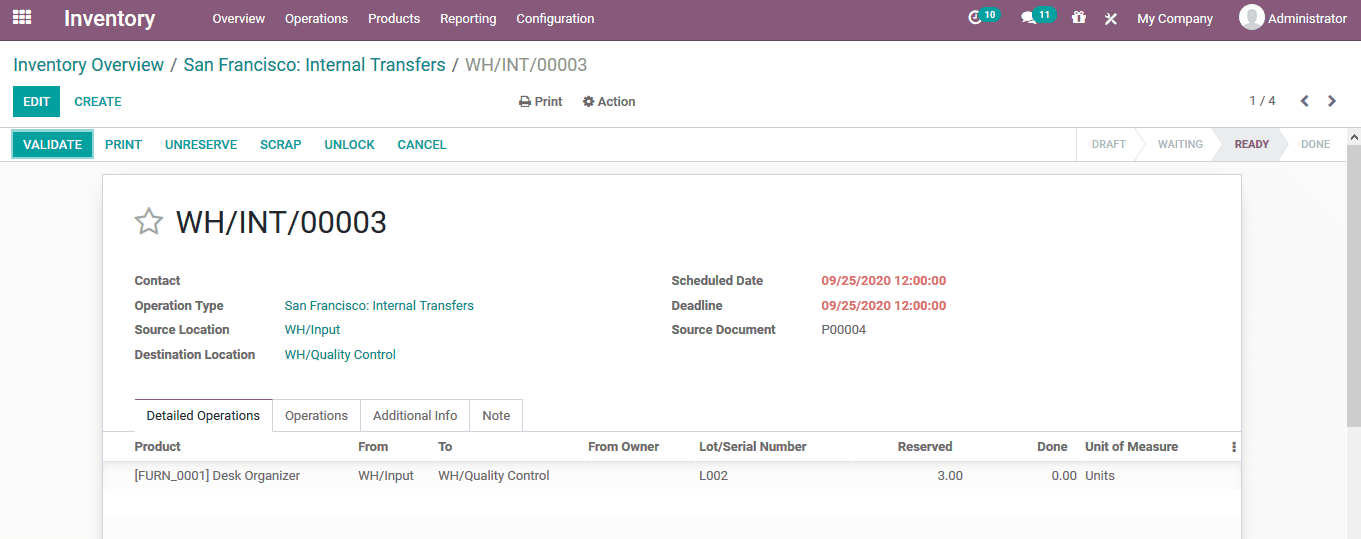
As the scrap locations in the options to scrap are available, the option to scrap can be viewed under each operation on the inventory such as internal transfers, receipts, delivery orders, manufacturing, POS orders and many more aspects. The option to scrap can be seen in the respective window along with the other options such as unreserved, unlock cancel and print. These options are available in the top of the window and are easily accessible.
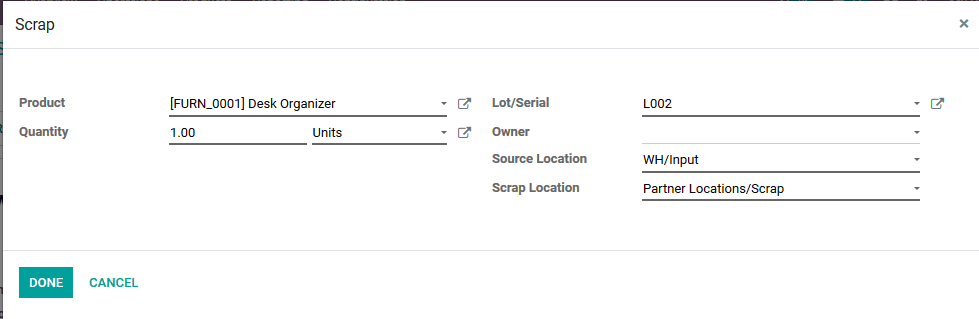
Upon selecting to scrap the user will be depicted with the scrap window where the product can be mentioned, along with the quantity with respect to the order. Additionally, if these are serial numbers for the respective products in the operation. The scarp and the source location are auto indicated and in which the scrap location can be changed as per the user's needs.
---
# Agent Instructions: Querying This Documentation
If you need additional information that is not directly available in this page, you can query the documentation dynamically by asking a question.
Perform an HTTP GET request on the current page URL with the `ask` query parameter:
```
GET https://manual.simise.id/inventory/scrap-management.md?ask=
```
The question should be specific, self-contained, and written in natural language.
The response will contain a direct answer to the question and relevant excerpts and sources from the documentation.
Use this mechanism when the answer is not explicitly present in the current page, you need clarification or additional context, or you want to retrieve related documentation sections.